
Creations, in your pocket
The whole magazine as a real app: the day's new writing, the events calendar, the circles, the full archive to search, and the pieces you save waiting for you even when the signal is not.


Free on both, with nothing to subscribe to and no paywall a few pieces in.
You're reading this from the installed app. One thing left: article alerts.
The whole magazine, made for a phone
Made to be read
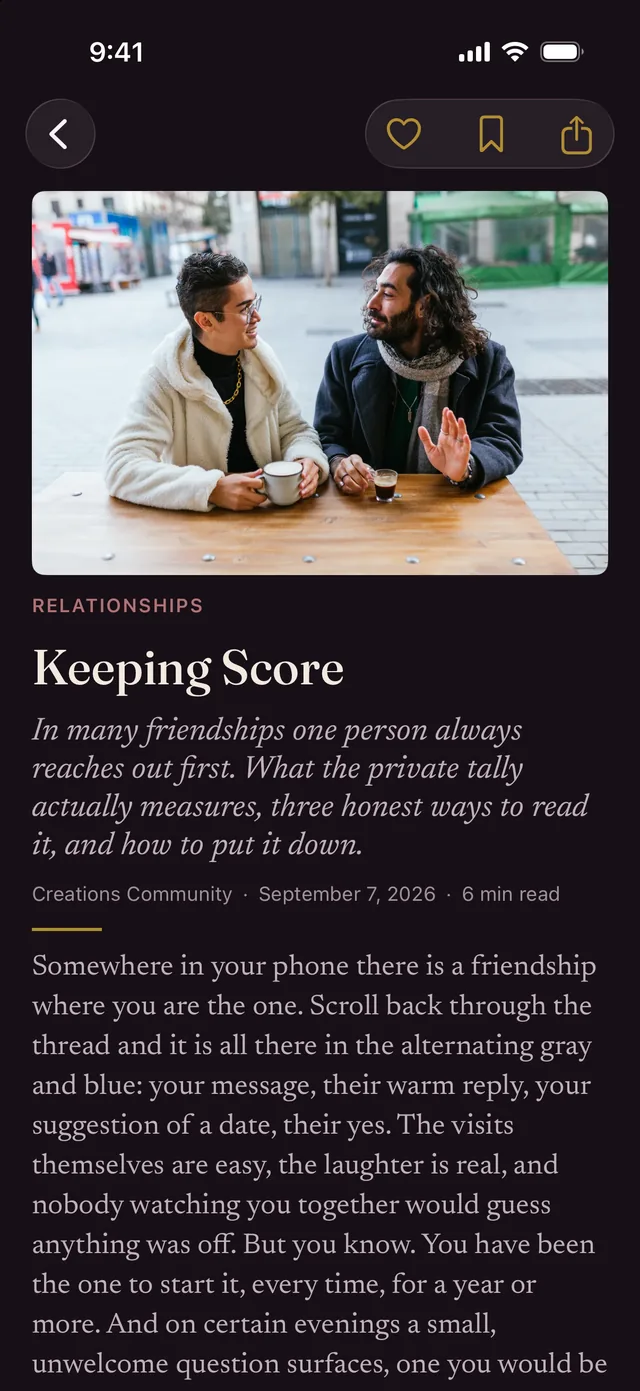
Pieces are typeset for the app, not squeezed into a browser. Set the text size to something your eyes agree with, and pick light, dark, or follow the phone.
New writing, as it lands
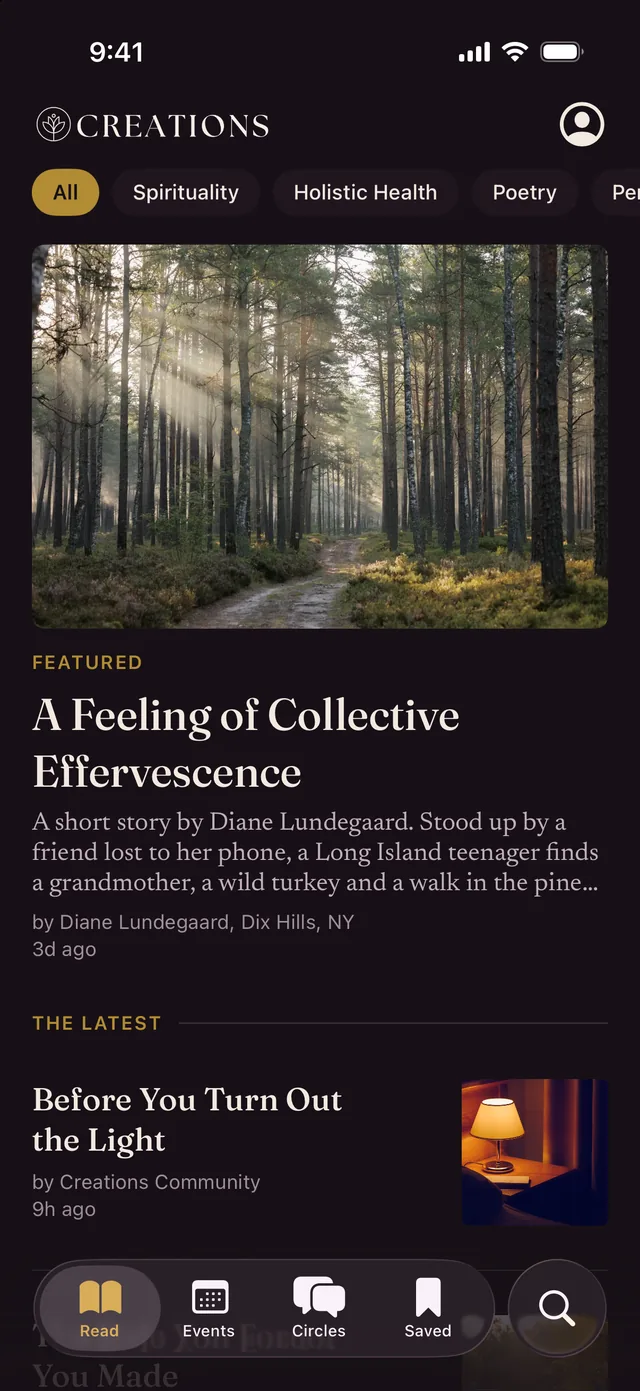
The day's pieces at the top, and the sections you came for a tap away: conversations, reviews, poetry and the rest of the magazine.
Keep what stays with you
Save a piece and it comes with you. Saved reading opens on a train, in a waiting room, or anywhere the signal gives up.
The circles, with you
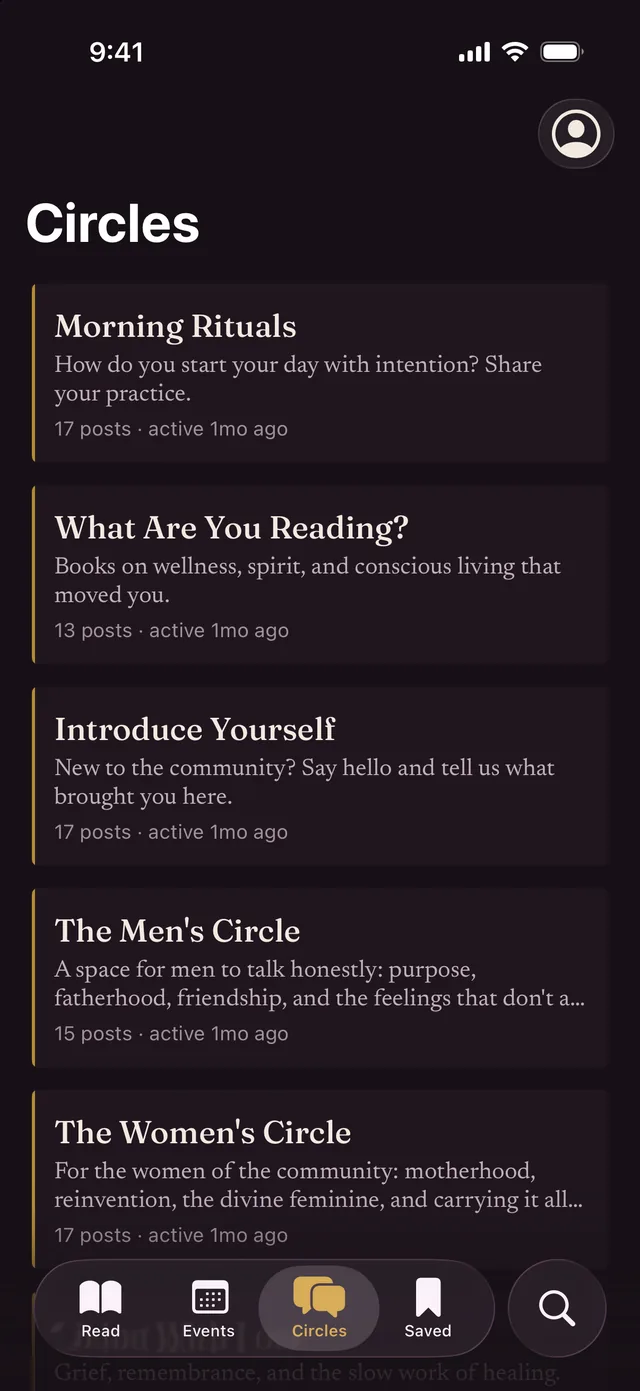
The conversations readers are having about the writing, joinable from the app, with comments on the pieces themselves.
What's on, and when
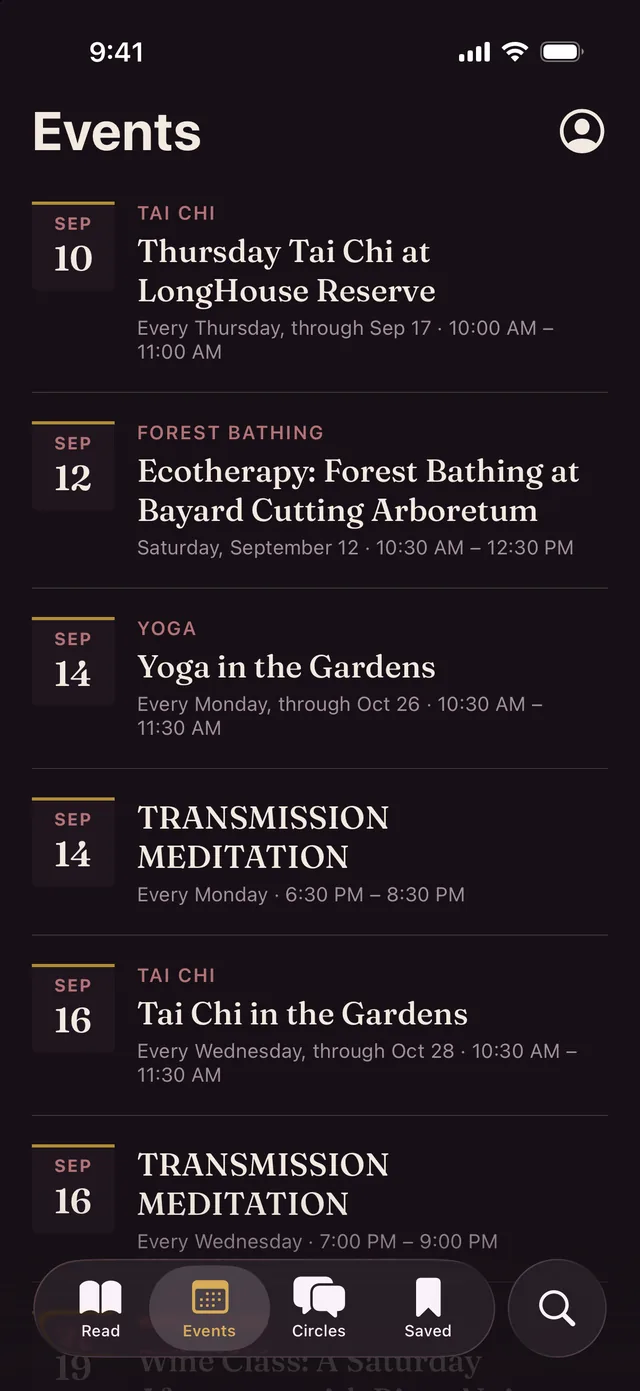
The events calendar laid out by the day: gatherings, workshops, readings and retreats worth putting in your week.
Years of it, searchable
Every piece the magazine has published, findable in a couple of words. Handy when you half remember an essay and want it again.
Dark, quiet, and out of the way
Real screens, not mockups: the day’s writing, a piece open to read, what is on locally, and the circles.
Good to know
How much does it cost?
Nothing. The app is free, every piece in it is free, and there is no subscription or paywall waiting a few articles in. You do not need an account to read.
Where do I get it?
The App Store for iPhone and iPad, Google Play for Android. It is free on both, and it is the same magazine either way.
Do I need an account?
Only if you want one. Reading, searching and the events calendar all work signed out. Signing in is a six-digit code sent to your email, no password to invent, and it is what lets you keep what you save and join the circles.
Does it work without a signal?
Pieces you save are kept on your phone, so they still open on a train, in a waiting room, or anywhere the bars run out. Newly published writing naturally needs a connection.
Will it send me alerts?
If you want them, and only then. When the day’s new pieces are published your phone gets one gentle tap, never a barrage, and you can turn them off whenever you like.
How do I remove it?
Like any other app. Press and hold the icon and choose remove or uninstall.